Arctis Sound Manager
Video Clips
Clips keeps the last seconds of your screen in memory and writes them to a file when you ask for it, with one audio track per Sonar channel — Game, Chat, Media and Mic stay separate, so a clip is still mixable after the fact. It comes with a library, a trim editor, and drag-to-Discord sharing.
It is off by default and installed on demand. A machine that only wants the mixer and the equaliser never pulls GStreamer, PyGObject or ffmpeg.
Turning it on
Open the Video tab. It is always there, whether or not the capture software is installed.
- Nothing installed yet — the tab lists exactly what it needs, with the package names for your distribution and a command you can run yourself. Press Install to do it in one password prompt, or run the command and press I’ve installed it.
- Installed, switched off — the button says Enable.
- On — the recorder, with Uninstall at the end of its top row.
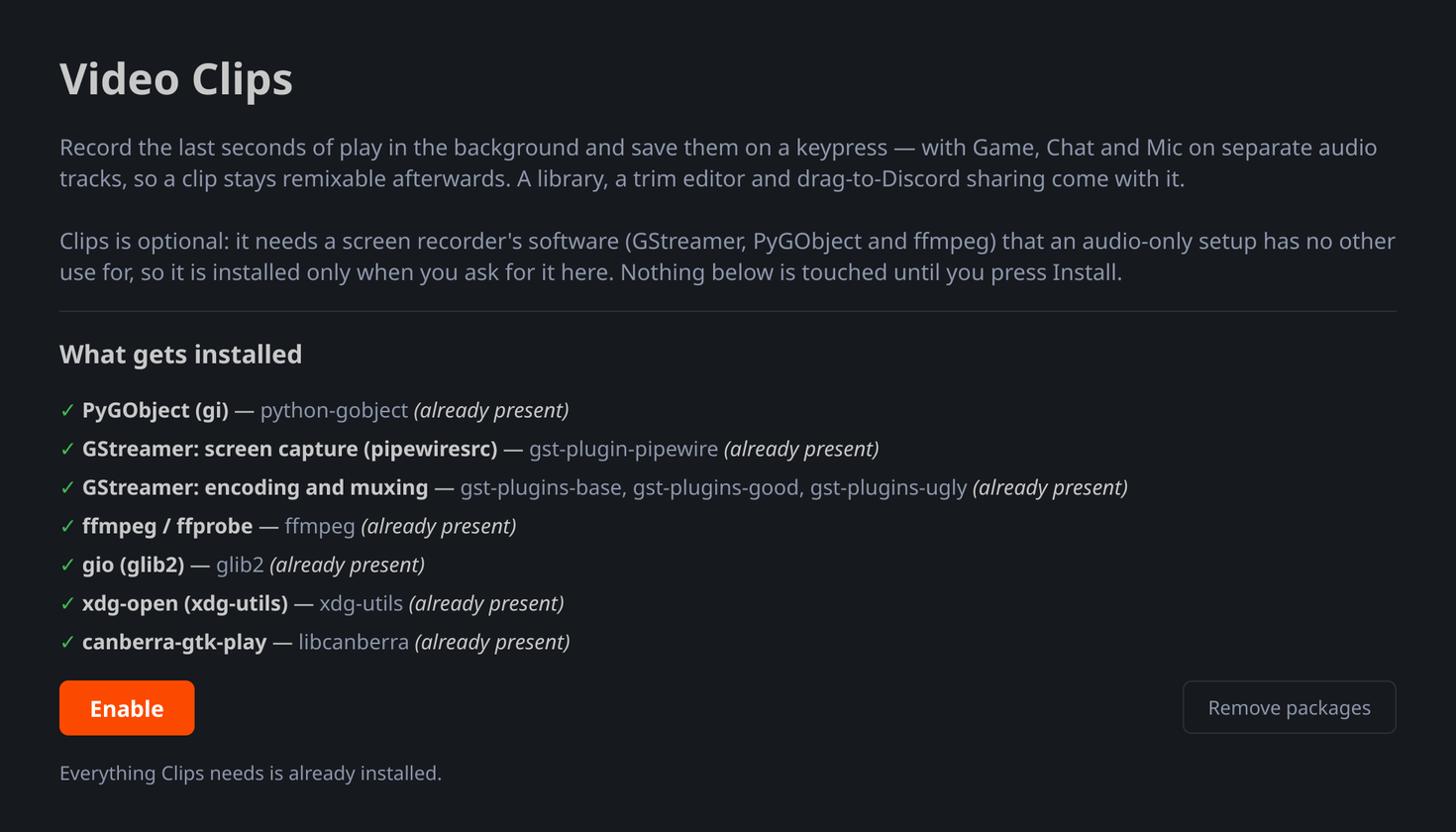
The same controls live in Settings → Clips; they share one code path, so it makes no difference which you use.
What gets installed
| Arch / CachyOS | Fedora / Nobara | Debian / Ubuntu | |
|---|---|---|---|
| PyGObject | python-gobject |
python3-gobject |
python3-gi |
| Screen capture | gst-plugin-pipewire |
pipewire-gstreamer |
gstreamer1.0-pipewire |
| Encoding and muxing | gst-plugins-base, gst-plugins-good, gst-plugins-ugly |
gstreamer1-plugins-base, gstreamer1-plugins-good, gstreamer1-plugins-ugly-free |
gstreamer1.0-plugins-base, gstreamer1.0-plugins-good, gstreamer1.0-plugins-ugly |
| Thumbnails, levels, export | ffmpeg |
ffmpeg |
ffmpeg |
Hardware H.264 encoding is optional: gst-plugin-va (Intel/AMD) or
gst-plugins-bad (NVIDIA/nvcodec). Without them the capture falls back to
x264enc, which costs CPU rather than the feature.
Removing it
Uninstall switches Clips off, then asks separately whether to remove the packages — defaulting to no, because every one of them is shared with the rest of your desktop. Before you answer, the dialog asks your package manager what would actually happen and shows you:
These would stay, because other software still needs them:
  • ffmpeg — firefox, mpv, obs-studio, vlc-plugin-ffmpeg, kpipewire, …
  • python-gobject — meld
Removal never forces, so a package something else depends on is refused by the package manager, which is the outcome we want. Your saved clips are never touched — this removes software, not recordings.
glib2, xdg-utils and libcanberra are deliberately never offered for
removal: on a normal desktop they are required by Qt, KWin and Plasma itself.
When the install fails
“could not satisfy dependencies”
error: failed to prepare transaction (could not satisfy dependencies)
:: installing pipewire (1:1.6.8-1) breaks dependency 'pipewire=1:1.6.8-1.2'
   required by pipewire-pulse
Your installed packages and your repositories disagree. gst-plugin-pipewire is
built inside PipeWire’s own source tree and pinned to an exact release —
pipewire=1:1.6.8-1, not a minimum — as all of PipeWire’s split packages are.
Update the whole system first and try again:
sudo pacman -Syu        # Arch and derivatives
sudo apt update && sudo apt full-upgrade
sudo dnf upgrade
On Arch there is no such thing as upgrading one package on its own, which is why the fix is a full system update rather than a smaller one.
A derivative distribution whose repository lags
If your distribution rebuilds PipeWire under its own package release — CachyOS
ships 1:1.6.8-1.2 where Arch has 1:1.6.8-1 — and does not yet ship a matching
gst-plugin-pipewire, pacman resolves to the Arch build, whose exact pin no
longer matches. Nothing on the install screen can fix this, and neither can
-Syu. Either wait for your distribution to publish the rebuild, or install the
matching package you already have cached:
sudo pacman -U /var/cache/pacman/pkg/gst-plugin-pipewire-<your-version>.pkg.tar.zst
Installed from pipx or a venv
Clips cannot run from a pipx install or from a virtualenv created without
--system-site-packages. PyGObject is a system package, not a wheel that
carries GObject with it, so such an environment can never import it however many
times you install python-gobject — the Video tab detects this and says so
rather than sending you round the loop. Use your distribution’s package of ASM,
or recreate the environment with --system-site-packages.
Recording
Start capture arms the buffer; Save last seconds writes what has already happened. There is nothing to press before the moment you want — that is the whole point of a rolling buffer.
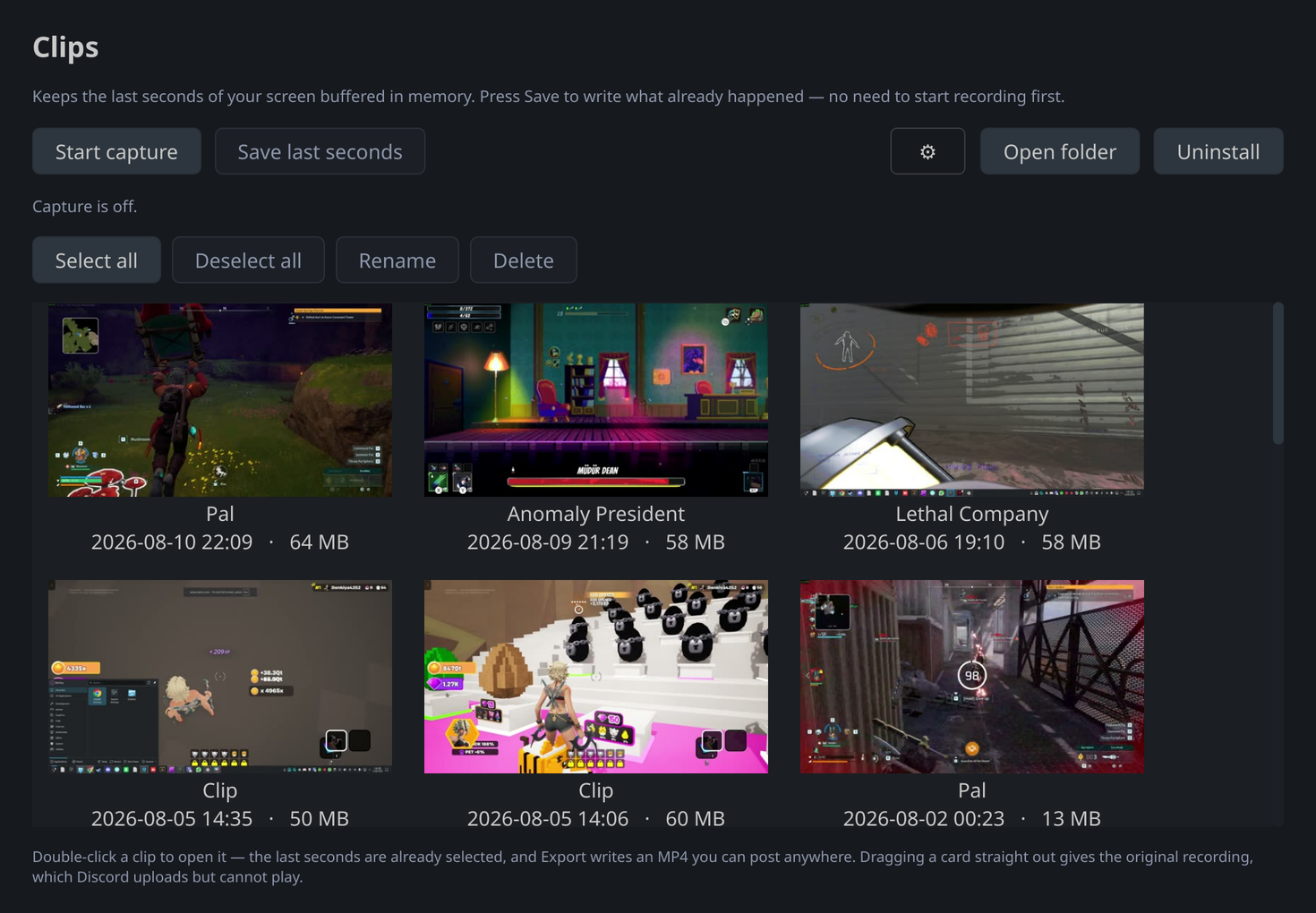
The settings live behind the gear next to Open folder, because they are set once and then never looked at again:
Length is how much history is kept in memory — 30 seconds by default, and anything from 5 to 300. Frame rate is a ceiling, not a target: the screen only produces a frame when something changes, so a still desktop records well under the number you choose. That is normal — what it saves is memory, encoder budget and file size.
The shortcut is registered with your desktop’s global-shortcuts portal, so it
works while a game has focus. asm-clipd does the same thing from a key binding
without the window open.
Choosing what to capture
The first capture opens your desktop’s screen picker — the portal dialog that asks for a screen or a window. The answer is saved and replayed on every later start, which is what stops a rolling capture from asking again each time it rebuilds its pipeline.
To change it, use Capture in the gear popup: it drops the saved answer and asks again. If a capture is running it restarts right there, while you are still looking at the button you pressed — a picker that appears unprompted twenty minutes later is worse than one that appears now. Cancelling the picker stops the capture and says so, because by then the previous session is already closed and there is nothing to fall back to.
The page cannot show you which screen or window is selected. That choice lives inside the portal and Wayland never hands it back, so the control offers the only honest thing — the way back to the picker — rather than naming a source it cannot verify.
Following the game
Capture automatically while a game is running is off by default: starting ASM never starts a capture. Opening a session to find the screen already being recorded — because a game happened to be running when the tray came up — is a surprise nobody asked for, and it costs more than the clip it might have caught.
Tick it and the buffer follows the game on its own, which is worth having if you would rather not think about arming it; the setting only ever applies once Clips itself has been switched on.
The game is found the same way a clip gets its name: whatever you routed to the Game channel, so there is no list of titles to keep up to date.
When the game goes, the capture goes with it — but not immediately. A game falls quiet for a loading screen or a cutscene, and tearing the pipeline down there would throw the buffer away and cost a portal prompt to rebuild it, so the silence has to last 45 seconds, and a game coming back resets the count.
Only a capture that started this way is stopped this way. If you pressed Start capture yourself, you are recording deliberately and you decide when it ends.
Clips on disk
Clips are written to ~/Videos/ASM Clips as Matroska (.mkv), with the audio
tracks named for their channels — a clip opened in mpv or VLC lists Game,
Chat, Media, Mic rather than four tracks called “Audio”. The loudest
channel is flagged as the default one to play, so opening a clip in any player
gives you sound rather than whichever empty channel it picked first.
Beside each clip:
| File | What it holds |
|---|---|
.tracks.json |
the channel names, the detected game, the measured duration |
.trim.json |
the trim you last made, restored when you reopen the clip |
.mix.json |
the per-channel levels and mutes from the editor |
Exports go to Shared/ inside that folder, which is why they do not appear in
the library.
Editing
Double-click a clip. The editor opens already framed on its last seconds, so Export can be pressed without touching anything.
On the trim band: drag the lit block to move the selection, its edges to resize it, and anywhere else to scrub. The block carries a grip and an open-hand cursor to say it can be picked up. A selection that covers the whole clip — which is what you get on a clip shorter than the default trim — has nowhere to move to.
Every channel plays together and mute decides what you hear, which is also what gets exported: the preview is the export.